A research paper reading workflow: import, annotate, review
When you are reading several papers, keeping your place is only part of the work. You also need to find the passage behind a conclusion later. This research paper reading workflow in DoCube connects those tasks: import a PDF or EPUB, use tags and dynamic projects to track what you are reading, annotate useful passages, and add the ones you want to remember to review.
Start on a Mac with one to three papers. When you write your literature review, use search to return to the source. You can also sync through iCloud to continue on an iPad.
Before you start
- Install DoCube on your Mac and choose one to three PDFs or EPUBs that open correctly. The free version allows up to 5 documents, including anything already in your library.
- Try selecting a sentence in a PDF. A scan without a usable text layer needs OCR before you can copy, search, or annotate its text.
- Choose a topic you are working on, such as "Machine learning." Use that topic when organizing documents and setting the scope of review.
1. Import your papers and add document tags
Import local files from the import menu. If your reading material is in one directory, you can use directory import. Open a document, check that the text and page numbers display correctly, and read a few pages.
Give these documents two tags: "Papers" and "Machine learning." The first groups your papers; the second identifies the topic. A document can have several tags, so you do not need to import another copy for each topic.
A folder works well for a course reading list that needs a fixed order. A dynamic project can then show the subset you are currently reading.
2. Create a dynamic collection for papers in progress
Open the project section in Settings, create a project, and name it "Paper reading." Use the plus button beside the project to add a collection. Open the collection's details to add its constraints.
Start with these rules:
- Name the parent collection "Papers" and set its tag condition to match
*Papers*. The asterisks allow other text before or after that word in a tag. - Create a child collection called "Reading now." Add one document-type condition that includes both PDF and EPUB.
- Add two reading-progress conditions: greater than 10% and less than 90%. These are example thresholds; adjust them to suit how you read.
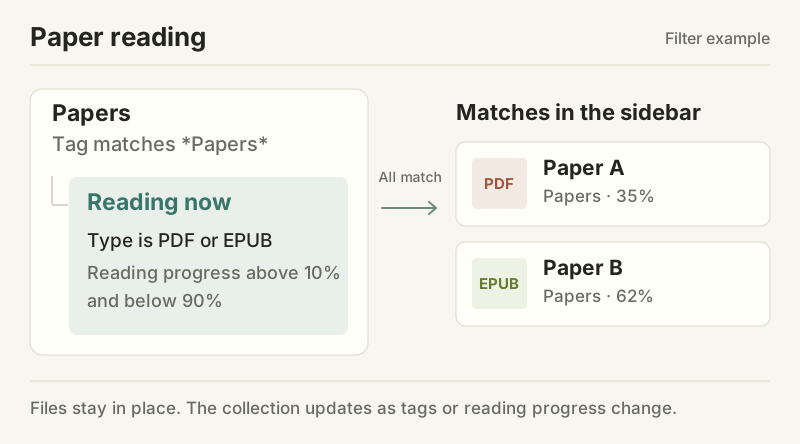
Check the matching documents in the collection's details. Then return to the library's quick sidebar, expand the project and its final collection, and open a paper to continue reading.
All conditions must match, though either PDF or EPUB satisfies the type condition. Documents with no recorded reading progress will not appear in this collection. Open them from the library to begin reading. If the collection is empty, also check whether progress falls within the chosen range.
A project does not move or copy the original documents. When tags or reading progress change, reopening the sidebar updates the collection. Documents keep their existing folder assignments.
3. Mark the argument and note your questions
Use a highlight or quote annotation for a definition or conclusion you want to keep. Add a Markdown annotation when you have a question about the method, such as "Could these sample selection criteria affect the result?"
For material you plan to review, select one concept or a short passage at a time. Leave enough surrounding text to understand what you are being asked to recall. Before citing a paper, check the wording and page number in the original PDF.
If you only need help with a few sentences in another language, use selection translation. DoCube does not currently translate an entire native PDF directly. To read a full translation or export a bilingual version, follow the PDF-to-MinerU translation guide. That workflow requires a configured online service, which may charge for usage.
4. Add selected annotations to review
Before marking lots of passages, set up a rule in annotation settings under "Auto Flash Card." For example, assign yellow highlights to "Key concepts," then use that type and color for material you want to review.
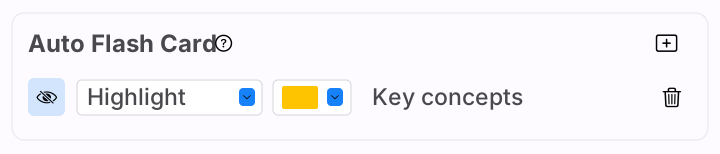
Set the rule first, then create a new annotation to try it. The highlight review guide covers the controls and concealment option. These annotation rules do not require an AI service to generate questions and answers.
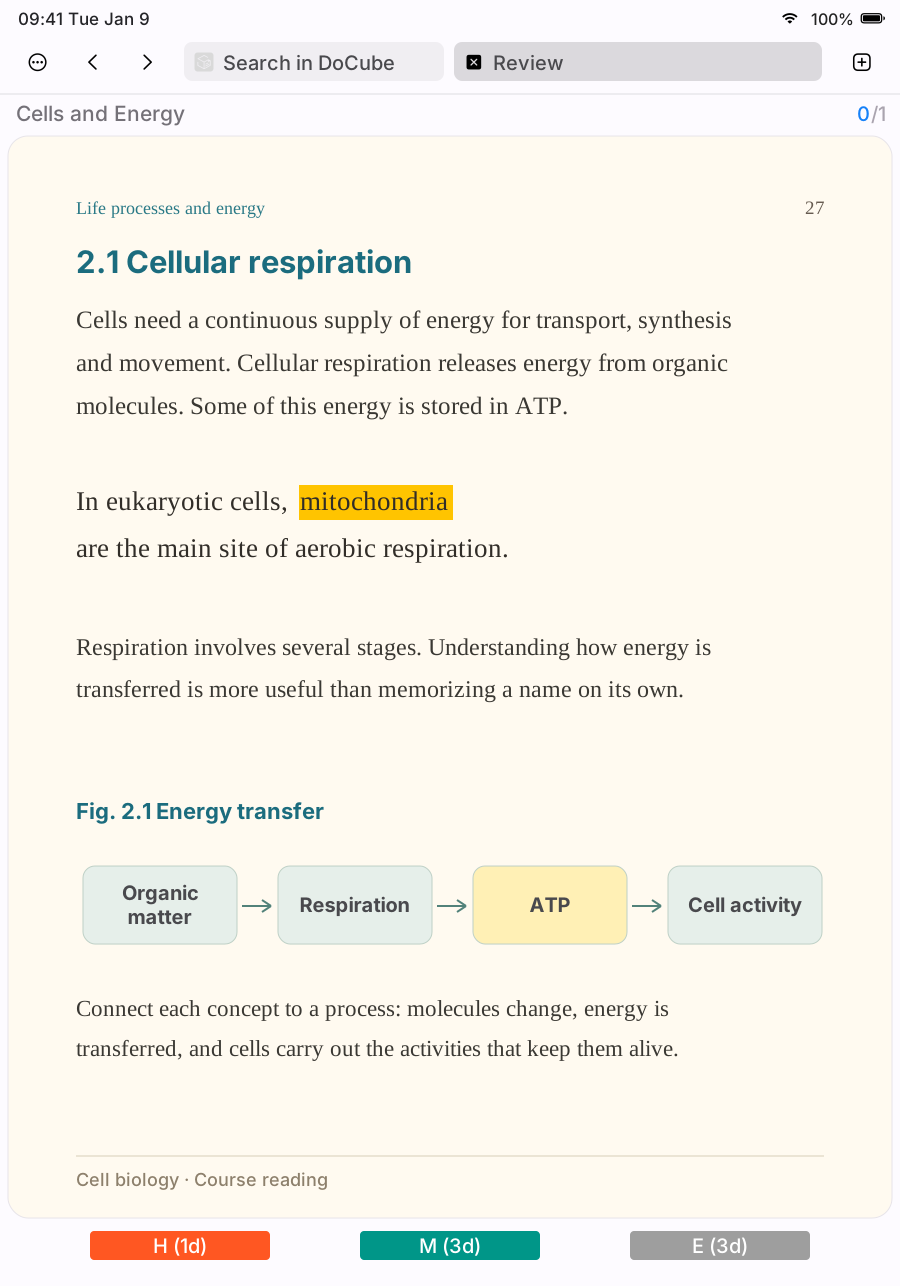
In plan settings, you can limit review to documents tagged "Machine learning." When review is due, open the plan from the home screen's review area. Recall the answer, check it, and rate your recall as hard, medium, or easy. New cards follow the schedule and may not appear in today's queue immediately.
5. Search for the source when you write
When you return to your notes a few days later, you may remember a concept but not which paper contained it. Open "Search in DoCube" and enter a term, a phrase from the paper, or something you wrote in an annotation. Keyword search covers titles, body text, and annotations across documents. Narrow the results by document type or tag if needed.
Open a result and check its context before citing it. Newly imported documents need time for parsing and indexing; scanned pages need a usable text layer first. See how to search across PDFs on a Mac for checks when a passage is missing.
If you write longer notes in Obsidian, put a docube:// location link beside the point it supports. You can click it later to return to the passage. The Obsidian workflow guide shows how, without moving your existing vault.
Continue reading on an iPad
Use the same Apple ID on your Mac and iPad, and enable iCloud sync in DoCube's cloud sync settings on both devices. Once syncing finishes, open the same paper on the iPad and check its reading position and annotations before continuing.
This sync covers documents in the DoCube library, annotations, notes, and reading records. It does not include locally downloaded models, caches, or original source files kept elsewhere on the device.
Common questions
Can I try the whole workflow for free?
Yes. Use up to 5 documents to try reading, annotations, search, and review. Pro removes the document limit and unlocks translation-file and format-conversion exports. It is currently a one-time purchase for iPhone, iPad, and Mac.
Should I use a dynamic project or a folder?
Use a folder for a fixed grouping and manual order. Use a project to keep track of documents that match tags, types, or reading-progress conditions. You can use both: a project does not move files or create extra copies.
Why is a newly imported paper missing from Reading now?
Check its document tags, type, and progress. In this example, it must be a PDF or EPUB with recorded progress greater than 10% and less than 90%. A paper you have not started, have barely read, or have nearly finished may fall outside those conditions.
Can I annotate and review a scanned paper?
Run OCR first if it has no usable text layer. Check the selected text, especially numbers, formulas, and technical terms, before applying rules and annotations. If the layout is complex and you also need a full translation, consider MinerU and check its output against the original pages.
Do I have to use automatic annotation rules?
No. You can create flip cards or mask cards manually when you want to write your own questions. Annotation rules are useful for reviewing passages you marked while keeping their original context.
Can I search by meaning if I cannot remember the wording?
Yes, after configuring a local Embedding model and building a semantic index. Once the model is downloaded and configured, semantic search can run offline. It needs this setup; keyword search is available without it.
Try the workflow with a paper you are already reading: download DoCube from the App Store.