Keep a PDF figure in your notes and return to its source
A figure pasted into a note often leaves a question for later: what conditions did the author use, and what did the surrounding paragraphs say? In DoCube, capturing a PDF region and pasting it into a Mixed Note preserves its source location. You can return to the PDF page, check the context, and then go back to the note.
Start with one figure from a textbook or paper. You do not need to organize the whole document first.
1. Capture the region in the PDF
Open the PDF and find the figure. Use DoCube's document region capture and drag over the area you need. Include the legend, units, and title where useful, so the image still makes sense on its own.
Confirm the selection. This puts the image and its source information on the clipboard. It does not create a note or paste the image for you.
2. Paste it into a Mixed Note
Create or open a Mixed Note, place the insertion point in the body, and paste. Under the figure, write what you understand and what you still need to check.
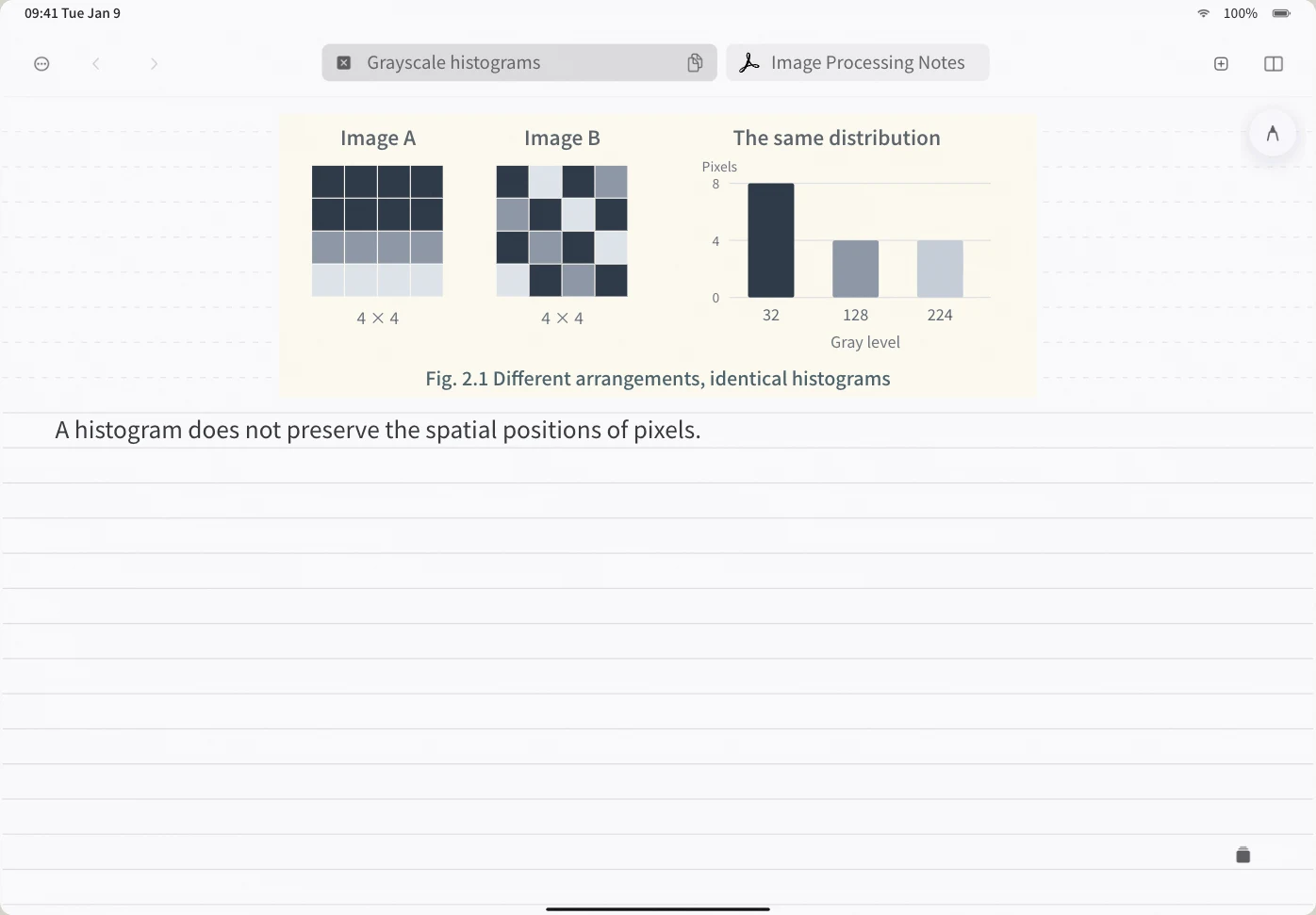
The note below records one point: "A histogram does not preserve the spatial positions of pixels." The reader then returns to the textbook to check the example. Keeping the explanation beside the figure makes its source easier to revisit.
3. Choose Open Original from the image menu
Select the excerpt image in your note, open its menu, and choose "Open Original." DoCube opens the corresponding PDF at the source location.
Check the axes, footnotes, and surrounding paragraphs. If you will cite the figure, also check the PDF's printed page number and publication details. Your explanation beside the image does not replace the original reference.
4. Return through the pin on the PDF page
Once the pasted excerpt has created an association, its source region in the PDF has a pin. Select it to return to the excerpt in your note and add what you have just confirmed.
After saving the note, try both directions once: open the original, then use the pin to return. That lets you check the source while the material is still in front of you.
Common questions
Does an ordinary screenshot keep the same source link?
An image from a system screenshot or another app usually contains only the image. This workflow depends on the source information carried by DoCube's document region capture. Arbitrary pasted images should not be treated as linked excerpts.
Does a scanned PDF need OCR first?
Capturing a page region does not require selectable text. Copying the text, searching it, or adding text highlights does require a usable text layer. For those tasks, run OCR on a scan first. See the PDF search and scanned-document guide.
Why is Open Original missing?
Check whether the image came from DoCube's document region capture rather than a regular image paste. Try capturing and pasting the region again. If the source action exists but cannot open the document, check that the PDF is still available in the current device's library.
Can I return to the source on my iPad?
Sync both the note and the source PDF first. Seeing the image in the note does not mean the source document has finished syncing. Once sync completes, check that both documents open.
What if I keep my notes in Obsidian?
Copy a docube:// location link and place it beside the relevant passage in Obsidian. The Obsidian workflow guide covers the steps. The pin described here belongs to DoCube's internal excerpt association; an external note app does not automatically create the same marker.
To combine a figure with evidence from articles and video clips, see the connected-note example.
Try it with a figure you are already reading: download DoCube from the App Store.