Use DoCube with Obsidian: jump back to the exact PDF passage
Add a docube:// location link beside an idea in Obsidian, and you can click back to the original PDF passage in DoCube. EPUB passages and video timestamps work the same way. Write in Obsidian and use DoCube to read and annotate your sources.
Open both apps side by side on the same Mac. When you find something worth noting, write your response and add its source link.
Before you start
- Install DoCube and Obsidian on your Mac.
- Import a PDF, EPUB, or local video into DoCube and check that it opens.
- Open an Obsidian note for your outline, reading notes, or comparison of sources.
DoCube has its own Markdown notes, too. This guide keeps your existing notes in Obsidian; you do not need to move your vault.
Link a note to its source in four steps
1. Find the passage in DoCube
Go to the place you want to cite: the experiment design on page 6 of a PDF, an EPUB definition, or an example at a particular time in a video.
Check one reference before adding more.
2. Copy the current location
Use DoCube's document-address action to copy the current docube:// address. For the copying steps, see how to copy a location link.
Keep the entire address, including the location at the end. Use the copied DoCube address rather than a file path or the source's web address.
3. Add a Markdown link in Obsidian
Write your thought, then add a source link:
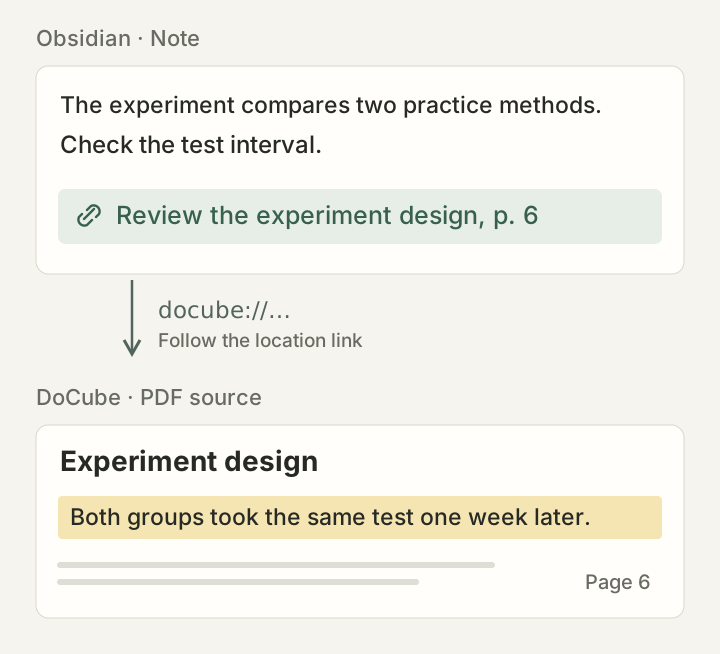
The experiment compares two practice methods.
Check the test interval.

[Review the experiment design, p. 6](docube://…)
Replace all of docube://… with your copied address. The ellipsis is a placeholder and will not work as a link. Put these lines in the note's body, outside a code block.
The square brackets contain the label shown in your note. This uses Obsidian's Markdown external-link syntax.
4. Follow the link and check the destination
Switch to Reading view with ⌘E (the Mac default) or the editor's view switcher. Click “Review the experiment design, p. 6.”
If asked whether to open DoCube, confirm. Check the page or passage, or the playback time for a video. Then return to Obsidian and keep writing.
Bring several sources into one note
Place links beside the points they support: a PDF's methods section, an EPUB definition, or a video example. Copy each address from the intended location and give it a distinct label.
For an important claim, keep a short quotation and the author, year, page, or chapter beside the link. Those details remain readable when you export the note, share it, or change editions. Editing a link's label leaves its destination unchanged; editing its address changes the target.
If you have yet to find the passage, see how to search across PDFs on Mac.
Frequently asked questions
Why does nothing happen when I click a docube:// link?
Check that DoCube is installed and opens normally on this device. Confirm that the full address is in the link and that the link is outside a code block. Try it in Obsidian's Reading view. If your system asks which app should handle the address, allow DoCube to open it.
Why does the PDF open at the wrong position?
Copy the address again from the intended location and check that you kept its final location component. Replacing a PDF, changing an EPUB edition, or rearranging chapters can also make an old location inaccurate. Copy a new link after those changes.
Can I use the link on another Mac, iPhone, or iPad?
The link carries no file. Install DoCube and import or sync the same document on the other device first. Syncing only your Obsidian notes is not enough.
On iPhone and iPad, Obsidian must also be able to hand the docube:// address to DoCube. Once the source is available, try one link and check its destination. A matching filename alone does not mean it is the document the link refers to.
Can someone else open the source if I send them my note?
They need DoCube and the corresponding document, too. Sending a location link does not share the file or grant access to it. A title, author, page number, and short quotation will still help readers who do not use DoCube.
Do I need to import my vault or install a plugin?
Neither is needed for this workflow. Keep your notes, graph, and existing plugins in Obsidian. DoCube opens the sources you link to. An external link does not create an automatic backlink in DoCube or sync annotations between the apps.
Does this work with the free version?
Yes. DoCube's free version holds up to 5 documents, so you can try the workflow with a few sources. Pro is a one-time purchase for managing more documents.
Try it with one note and one source: download DoCube from the App Store.