Save web articles for offline reading and annotation
A bookmark saves an address you may still need a connection to open. In DoCube, you can save an article as an HTML snapshot, remove unwanted content, and keep it in your library for offline reading and annotation.
Check the saved text and images once. Login pages, dynamic content, and remote resources may not be captured completely. A document title in the library does not prove the whole article was saved.
1. Share the article from Safari
Open the article in Safari and wait for its body to load. Open the Share menu and choose "Send To DoCube." This works on Mac, iPhone, and iPad; Safari passes the current page's HTML content to DoCube.
You can also choose web import from DoCube's add menu and paste a URL. If that cannot retrieve the complete article, open the page in Safari and try sharing its current HTML content.
2. Check the article and remove distractions
In the web import flow, check the title, opening, ending, and important images before saving.
Use the text-cleanup or erase controls to remove unwanted elements. Keep captions, footnotes, and author details when they matter to the article. If you are unsure about a section, compare it with Safari before removing it.
3. Choose how to save it
For continued reading and paragraph annotations, choose the web snapshot import option. This saves an HTML document in the library and retains more of the original layout.
If you want to edit or reorganize the text, choose Markdown import. It extracts the main content; complex page styling and interactions will not be preserved in full.
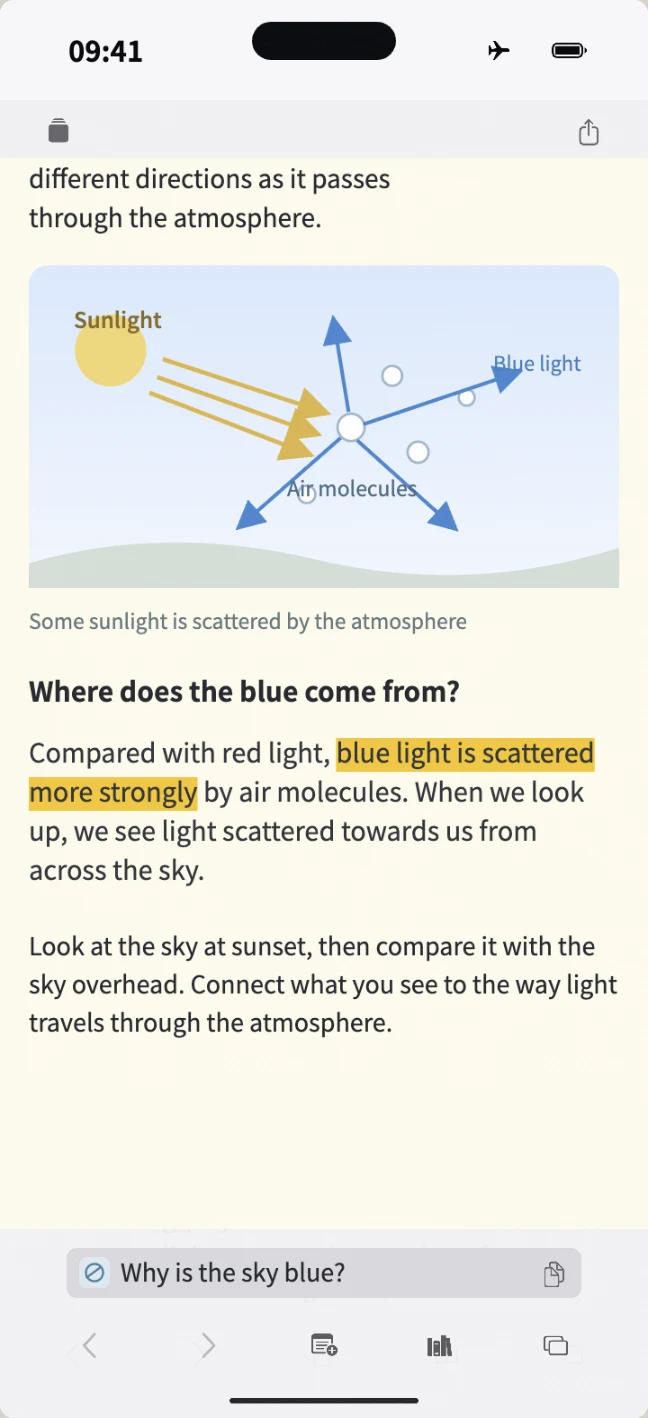
4. Reopen it offline and mark a passage
After import, reopen the article from the library. Check the text and images while connected, then disconnect temporarily and reopen it to confirm the material you need is available offline.
Select a short passage and add a highlight. Close and reopen the document to check the annotation. To review selected highlights later, follow the annotation-to-review guide.
Common questions
How is this different from a browser bookmark?
A bookmark mainly keeps a URL. This workflow saves a webpage snapshot in DoCube, where you can read and annotate the local document. What remains available offline depends on the content captured during import.
Can I save an article that requires a login?
There is no guarantee. A page may depend on a login session, scripts, or access permissions. Try sharing the HTML already open in Safari and inspect the result. If it is incomplete, saving a PDF may be an option within your usage rights. Import does not remove a site's access restrictions.
Should I choose HTML or Markdown?
Try HTML when you want to preserve the article's reading layout and annotate it. Choose Markdown when you mainly want to edit and reorganize the text. Inspect the preview and the saved document to check that the format suits your purpose.
What if images disappear offline?
Reconnect and compare the saved article with the original. If important images are still missing, try Safari sharing or saving a PDF, then check offline access again. Treat a snapshot missing essential figures as incomplete.
Does the snapshot follow updates to the original website?
A snapshot keeps the content obtained during import. Do not treat it as the site's current version. When citing information that may have changed, check the original URL and save a new copy if needed.
Can I continue on another device?
Wait for the document and its resources to sync to that device, then check the article, images, and annotations. See the local document and note guide for organizing a larger collection.
Try saving an article you want to read while traveling: download DoCube from the App Store.