Repeat a subtitle line while listening to a local video
When one sentence in a video is hard to hear, dragging the progress bar back can miss its beginning. DoCube can repeat the current subtitle's time range. You can also set A and B points to repeat a longer passage.
Start with a local video that plays correctly and has subtitles matching the audio. The steps below focus on Mac, with separate entry points for iPad.
1. Find the sentence you want to hear again
Open the video and subtitle list. Select a line to jump to its start, then listen once to check that the words match the audio.
If the video has no subtitles, follow the local Whisper subtitle guide. Automatic transcription can make mistakes. Check the sentence and its time range before practicing with it repeatedly.
2. Loop the current subtitle
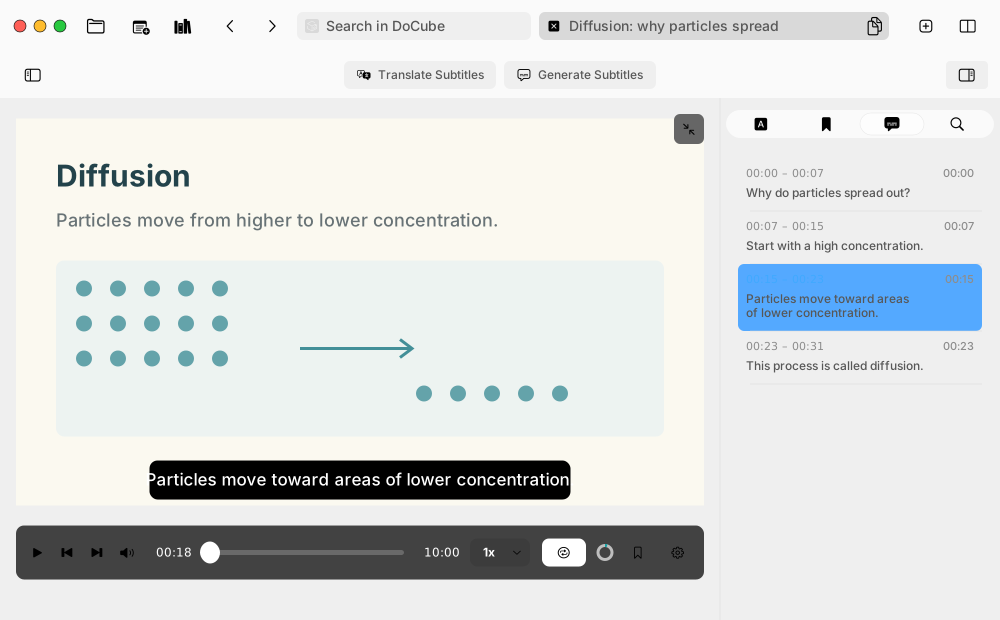
On Mac, while the subtitle is showing, right-click the range-loop control in the player toolbar and choose the option to loop the current subtitle. It uses that line's start and end times.
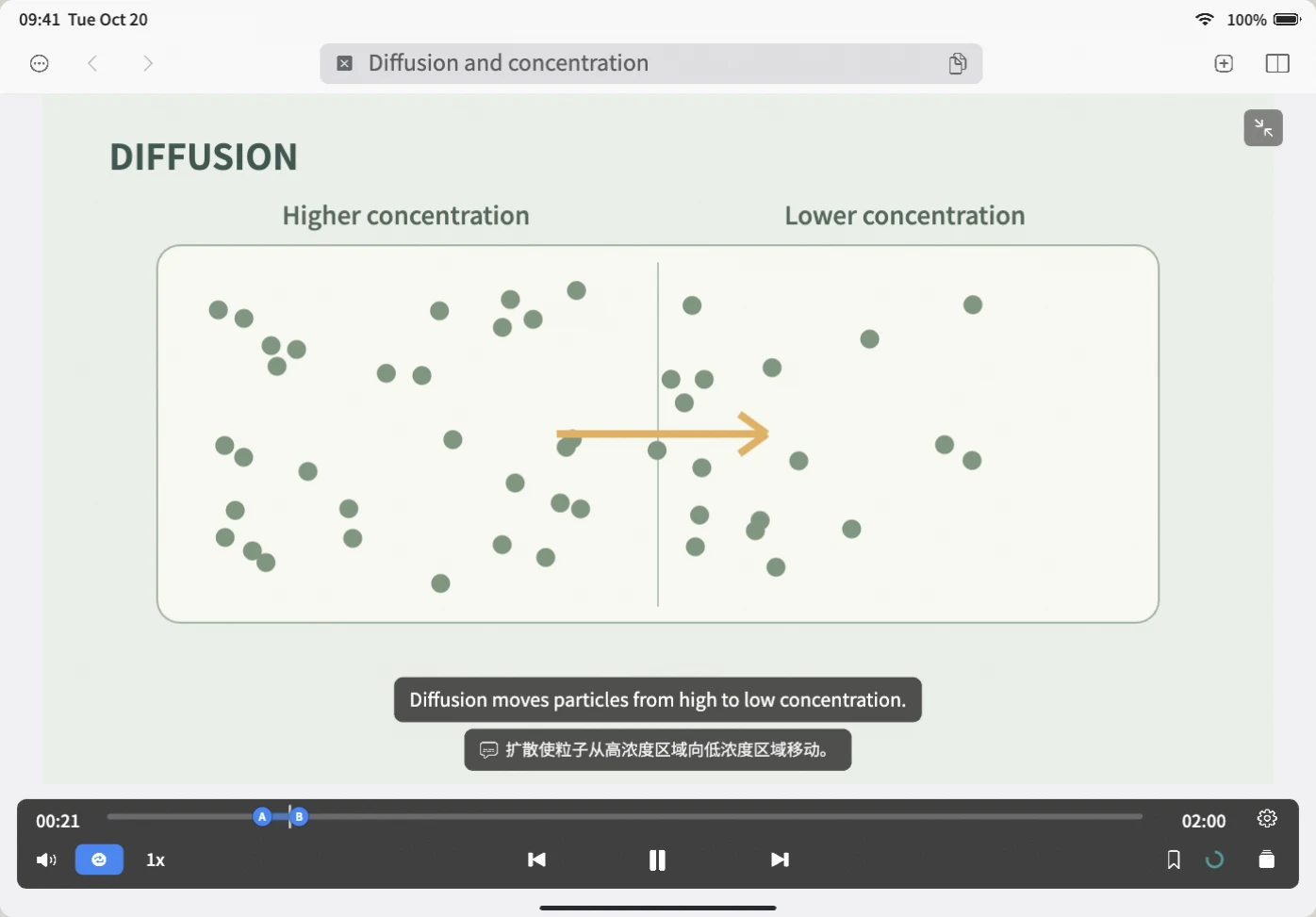
On iPad, touch and hold the range-loop control and choose the same option. You can also open video settings, then Playback Controls, A/B Loop, and Current Subtitle. Setting the range pauses the video; press play to start looping. The demo below uses the touch-and-hold menu.
If the option is unavailable, play or select a subtitle so that the current time falls within its range, then reopen the menu. A gap between subtitle lines does not belong to either line.
3. Include more context with an A-B range
If you can hear the sentence but still do not know what a pronoun refers to, include the explanation before it. Use the range-loop control to set A and B points, then drag those markers on the timeline to adjust them.
Place the start at the beginning of a complete sentence and the end after the explanation. Listen through the whole range once before deciding whether to shorten it.
4. Leave the loop and continue watching
Use the range-loop control to exit the loop. The video pauses; press play again to continue. Listen to the next few sentences to check that you understand the passage in context.
To revisit it later, insert the passage into a note and add your explanation. See taking notes with playable video clips.
Common questions
Can I loop a video without subtitles?
Yes, by setting A and B points manually. Looping the current subtitle requires a subtitle at the current playback time.
Why does the loop start or stop halfway through a sentence?
Check the subtitle timing against the audio. A subtitle segment may not include the complete thought. Use an A-B range to include more of the surrounding passage.
Do I need bilingual subtitles first?
No. Looping works with the original subtitles. If you want a translation, configure an online AI service separately. Translation may incur provider charges and is not part of offline looping.
Can I practice offline?
Yes, when the video and subtitles are saved on the current device. Download the local model beforehand if you need to generate subtitles. Online translation still requires a connection.
Does this score my pronunciation?
The controls described here locate and repeat video passages. They do not provide pronunciation scores. You can use them to listen again or speak along and decide what needs more practice.
Try it with a passage you are already studying: download DoCube from the App Store.