Turn Highlights into Review Cards in DoCube
The passages you highlight while reading do not need to be copied into separate cards. Set up an annotation rule in DoCube, and matching highlights automatically become review cards. You can keep the surrounding text visible, hide the highlighted passage, try to recall it, and tap to reveal the answer.
This works with any document that supports highlighting in DoCube. This guide uses yellow highlights in a PDF on an iPad as an example, from setting up a rule to completing a review.
Before you start
Choose a document and check that you can select and highlight its text in DoCube.
Start with one concept or a short passage. Try the full workflow before applying it to more reading material.
Five steps to review your highlights
1. Open the document you want to read
Open the document in your DoCube library. If you are using a local file that you have not imported yet, open the import menu, choose the local file option, and select your file.
2. Set up an annotation rule
Open DoCube settings and select the annotation section, marked with a pencil icon. In Auto Flash Card, tap the plus button.
Choose Highlight, select yellow, and enter a category such as Key concepts. New annotations that use this type and color will be added to review.
To hide the answer during review, enable the crossed-out eye button on the left of the rule. This only changes the review view; the highlighted text stays visible during normal reading.
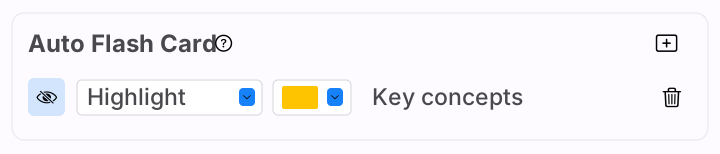
Illustrations recreate DoCube’s iPad interface using example reading material.
3. Highlight with the matching color
Return to your document, press and hold to select the text you want to remember, and open the annotation panel. Select yellow, then tap [Key concepts]. The label comes from the category you entered in the previous step.
Matching annotations are added to review automatically. You do not need to copy the passage into another card.
Select one concept or a short passage at a time. Leave enough surrounding text to help you recall the hidden part; hiding a whole paragraph can make the task unclear.
![Select “mitochondria,” choose yellow in the annotation panel, and tap [Key concepts].](/en/img/guides/highlight-review/en-highlight.svg)
4. When a review is due, recall the text and reveal it
Return to the DoCube home page and open a due plan in the review area. A newly created card may not appear in today's queue immediately. Follow the schedule shown in the app.
With concealment enabled, you see the source passage with the selected text covered and the surrounding content still visible. Try to recall the hidden text, then tap the covered area to check it.
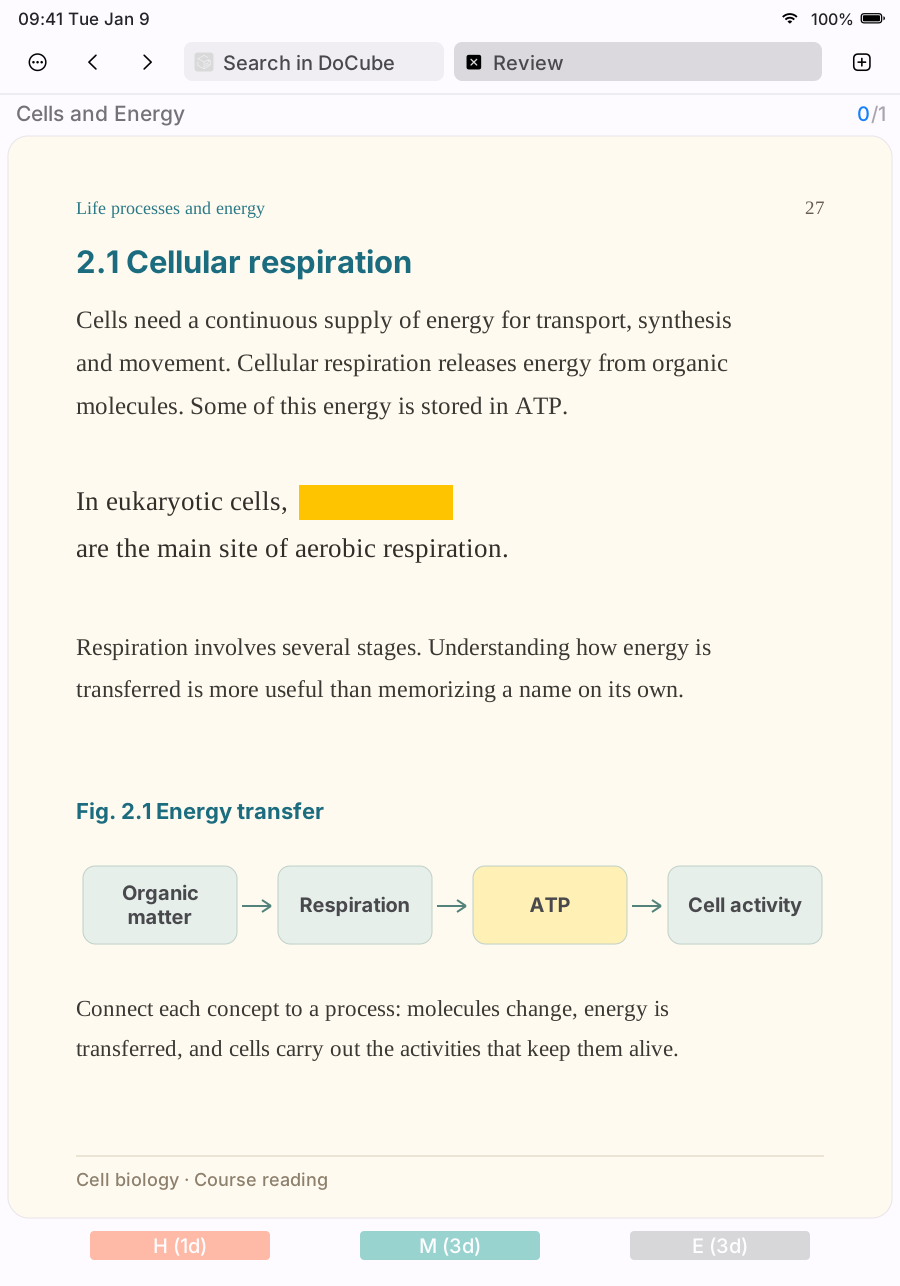
5. Rate how well you remembered it
After revealing the text, check your answer and choose H, M, or E for hard, medium, or easy. DoCube uses your choice to schedule future reviews. The buttons show the applicable intervals.
If you could not remember the passage, choose accordingly. The rating tells DoCube how often you need to return to it.
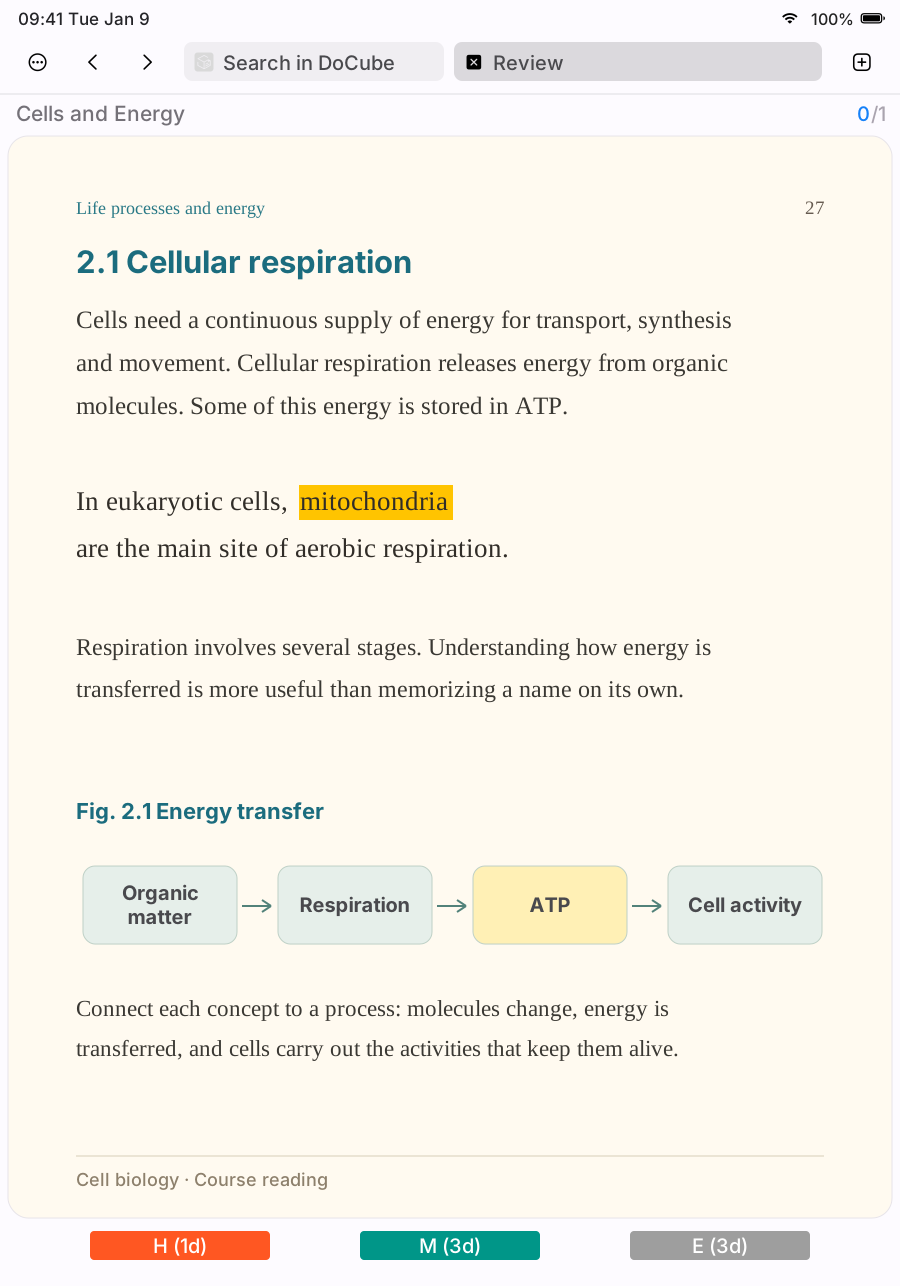
Common questions
Do I need to configure an AI service?
No. This workflow uses annotation rules in Auto Flash Card to add your selected source text to review. It does not require AI to write questions or answers.
Why is my new highlight missing from today's review?
Check that its annotation type and color match the rule, and that you have entered a card category. Matching cards follow a review schedule; creating a card does not necessarily make it due immediately.
For your first attempt, set up the rule before creating a new highlight, then follow the steps above.
Does this work with scanned PDFs?
Run OCR first and check that you can select text. Then set up the rule and annotate as described above. Check the recognized text before highlighting, especially formulas, symbols, and technical terms.
Can I create cards manually instead?
Yes. After selecting text, you can also create a flip card or mask card from the card menu. Those let you compose card content yourself. The annotation rule in this guide keeps the original context for reviewing passages you highlighted while reading.
Try it with one document and one concept. Download DoCube from the App Store, or see the review demo on the home page.