Translate a research PDF with MinerU and export a bilingual document
To translate a research PDF and keep the original alongside it, convert the PDF to a MinerU document with DocWeave, then translate, check, and export it in DoCube. DoCube does not offer full-document translation for native PDFs. This workflow produces a new bilingual MinerU file and keeps the source PDF available for reference.
The five steps below use the Mac version.
When to use this workflow
MinerU is useful when you want to read a paper with columns, equations, or tables from start to finish, or save a bilingual copy. It parses a PDF into content blocks in reading order, retaining headings, paragraphs, images, and other structure for reading, correction, and translation. Complex pages can still be parsed incorrectly, so check them against the source PDF.
For a few sentences, select the text in the PDF and use system translation. Scanned pages need OCR first. If you already have an EPUB, follow the EPUB translation guide; there is no need to convert it to MinerU.
Before you start
- Install DoCube and DocWeave on your Mac. Choose a PDF that opens normally, has no DRM, and that you have permission to process.
- In DoCube's AI assistant settings, save your online provider's API key under service authorization. Then choose a provider and model for document translation under model configuration. Run a benchmark if you need to check that the configuration works.
- Try a short document first to check the parsing and translation before processing a long paper.
Full-document translation needs an internet connection. Text fragments are sent over HTTPS to the provider you configure, whose usage charges may apply. Local Embedding and Whisper models cannot perform this translation. DoCube Pro does not include the provider's translation fees.
Five steps to translate and export
1. Convert the PDF in DocWeave and send it to DoCube
Import the PDF into DocWeave and start conversion. Check the result, then send the MinerU output to DoCube. DoCube's built-in help includes a guide to creating MinerU documents with DocWeave if you need the detailed steps.
If you already have a MinerU archive or output directory, import it directly into DoCube and skip conversion. Wait for the document and outline to finish loading before continuing.
2. Check the parsed content against the source PDF
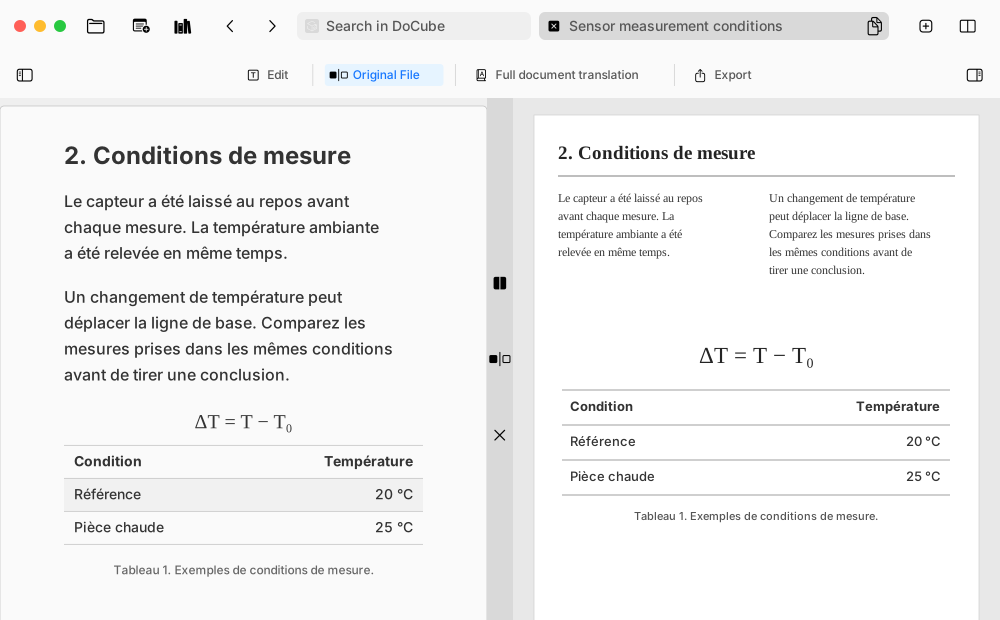
Look through the outline and a few complex pages. Check paragraph order across columns, headings, equations, tables, and image captions. On the Mac reading toolbar, Original File opens the source PDF for comparison.
Use Edit to correct the structured content or hide repeated headers and footers. Do this before annotating where possible: content with annotations cannot be edited or hidden directly.
3. Choose a language and start full-document translation
Click Full document translation on the reading toolbar. Choose a target under Translation language, then click Start translation. Long documents take time; results are saved in batches as processing continues.
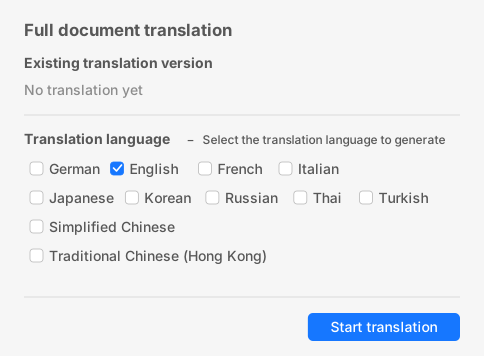
After a network interruption or app exit, reopen the panel and click Continue translation beside the saved language. Selecting that language again and clicking Start translation clears its saved results and starts over.
4. Open the translation and check key passages
When the language shows Open translation, click it to read both versions. MinerU displays them side by side in a wide view or stacked in a narrow view, with synchronized reading positions.
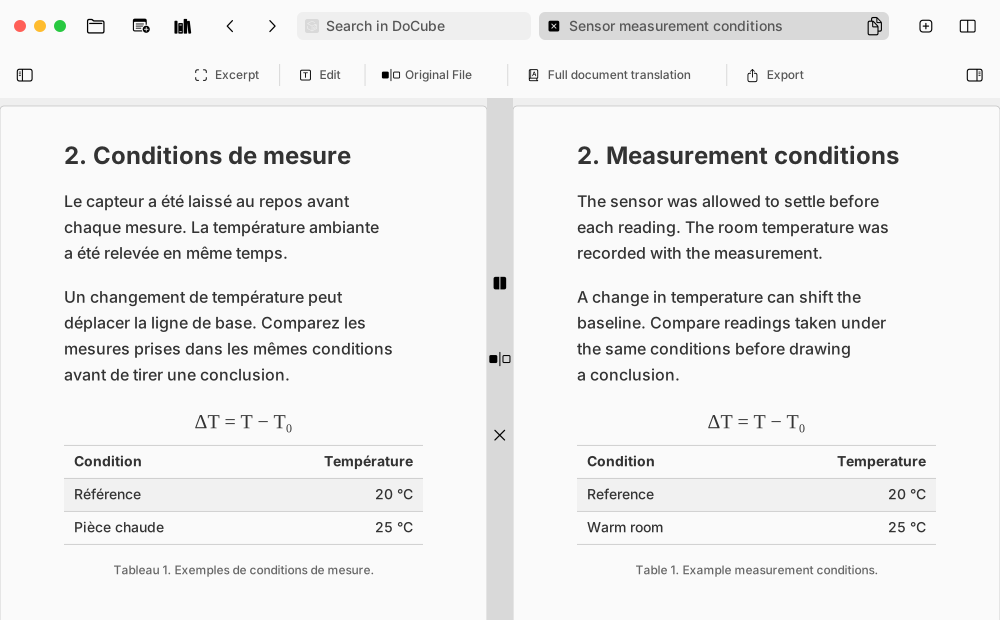
Open translation does not mean every passage was translated successfully. Repeatedly failed requests may leave a passage in the original language. After the full-document task has ended, right-click a problem passage in the translation and use the retranslation option to retry that passage.
Before citing the paper, use Original File to check the wording and page number. The structured text may have a different layout from the PDF.
5. Export a new bilingual MinerU document
After checking the text, reopen Full document translation. Under Existing translation version, click the export icon beside the target language. Choose Bilingual comparison to keep both languages, or Translation only for the translated text, then save the file using the system dialog.
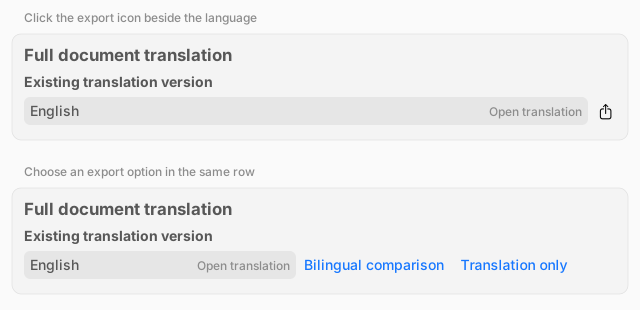
This requires Pro's translation-file export feature. It creates a new MinerU document, leaving the original document and source PDF unchanged. It does not create a bilingual PDF. The regular Export control on the toolbar is a separate entry and does not export these translation results.
Reopen the exported file and check chapter order, images, paragraph pairs, and important terms before using it elsewhere.
Common questions
Why is full-document translation missing from my PDF?
DoCube supports full-document translation for EPUB, HTML snapshots, and MinerU. Native PDF and Markdown documents do not use this workflow. Use selection translation for a short PDF passage, or convert the PDF to MinerU with DocWeave to translate the whole document.
How is MinerU different from OCR?
PDF OCR adds a searchable, selectable text layer to a scanned page while keeping its page layout. MinerU organizes the content into blocks in reading order so you can reflow, correct, and translate it. The source PDF is kept alongside those blocks. Complex layouts still need checking after parsing.
Do I have to install DocWeave?
Use the DocWeave workflow above to create a MinerU document from a PDF. If you already have a MinerU archive or output directory, you can import it directly into DoCube without converting it again.
Can I translate offline, and what does it cost?
Full-document translation uses an online service. Text fragments go to the provider you configure, and its usage charges may apply separately from DoCube Pro. Try a short document to check quality and usage before translating a textbook.
Can I try it with the free version?
The free version allows up to five documents. Within that limit, you can configure a service and try translation and reading; provider charges still apply. Exporting a translation-only or bilingual document requires Pro's translation-file export feature.
Will the export be a bilingual PDF?
No. The translation export described here creates a bilingual or translation-only MinerU document. The source PDF remains unchanged. Use Original File when you need the paper's original layout and page numbers.
Why do some passages remain untranslated after Open translation appears?
Repeatedly failed requests may fall back to the original text. Wait for the full-document task to end, then retranslate the affected passages from their context menu. You do not need to restart the entire language version to fill in a missing paragraph.
Try it with a short paper: download DoCube on the App Store.