Take notes on a local course video with playable clips
Writing "this part matters" during a course is easy. Finding that part again can take longer. In a DoCube Mixed Note, you can insert a range from a local video beside your own explanation. Replay it while reading the note, or open the source video when you need more context.
This guide uses a Mac, one video, and one note. The free version allows up to 5 documents; both the video and a standalone note count toward that limit.
1. Import the video and find the passage
Import a video file that plays correctly, then find the part you want to explain. Start with a question, such as "Why did these two approaches produce different results?"
If subtitles are available, select a line to return to its time. You can also choose a range by watching and listening without subtitles. To generate them first, follow the Whisper offline subtitle guide.
2. Create a Mixed Note and write your interpretation
Create a note from the new-document menu, give it a course or topic title, and write a sentence or two about the passage. On Mac and iPad, you can use the auxiliary panel to keep the video and note in view. Switching between their document tabs also works.
You do not need to transcribe the whole passage. Write what you observed and what you still want to understand. That gives the clip a purpose in the note.
3. Select the library video and set a range
Place the insertion point where you want the clip. Open the video insertion menu, choose the option to select a video from the library, and find the imported video.
Drag the A and B handles to set the start and end, then insert the clip. Include the beginning and end of the explanation so that playback does not start halfway through a sentence.
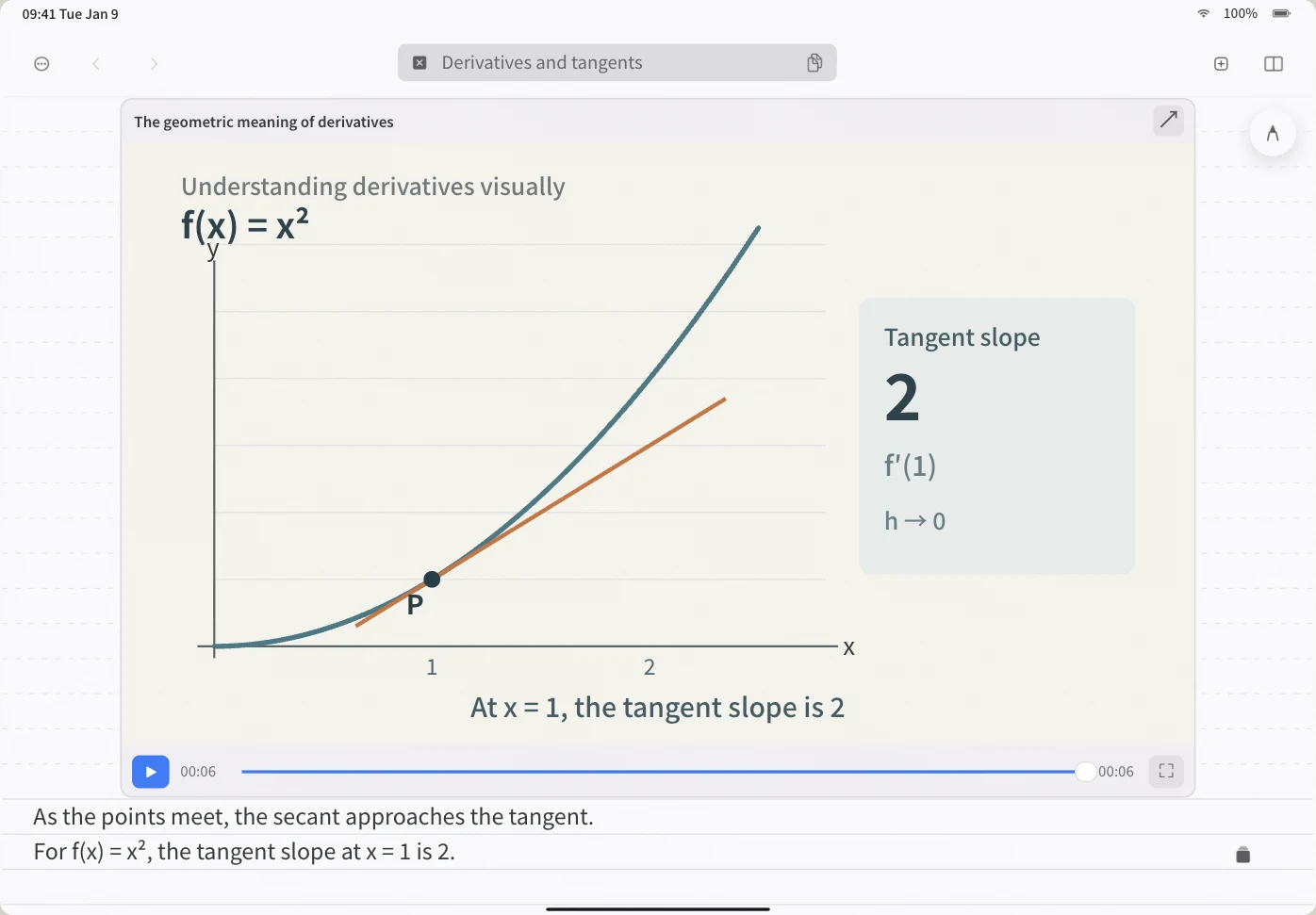
4. Replay the clip and check its context
The inserted clip plays directly in the note. If its source video has subtitles, the corresponding subtitles appear too. Play it once to check the range, then add anything missing from your explanation.
Choose "Open Source Video" when you need the surrounding material. The clip in the note depends on that source video, so keep it in your library.
Common questions
Does inserting a clip automatically summarize the course?
This workflow is for selecting a range, writing your own note, and replaying it. Inserting a clip does not automatically create a course summary.
Are subtitles required?
No. You can select a range by its start and end times. Subtitles help with navigation and rereading. Searching spoken content requires usable subtitles and a completed index; see offline video transcript search.
Why does the note appear on my iPad but the clip will not play?
Check that the source video has finished syncing and opens on its own in the iPad library. Syncing the note's text alone is not enough to play a referenced video clip.
Can I insert an online course URL as a local clip?
This guide uses video files already imported into DoCube. An online player or course URL is not the local video used in these steps. Start with a video file you have permission to use.
Can I put a diagram from the lecture notes beside the clip?
Yes. Paste a PDF figure excerpt with its source location into the same Mixed Note. Use the figure to explain the principle and the clip to preserve the process, then write your interpretation. See the connected-note example for a complete note.
Try it with a course passage you want to revisit: download DoCube from the App Store.