Adjust EPUB fonts and spacing, then reuse your settings
If an EPUB's text feels too small or its lines too close together, adjust the body font, size, and spacing in DoCube's style panel. Save the result as a preset, then apply it to another book without choosing every setting again.
These steps apply to reflowable EPUBs. Fixed-layout books keep the publisher's page design and do not support the same body-style changes. PDFs do not use this workflow either.
1. Open the style panel and enable customization
Open a reflowable EPUB. On Mac, open the details panel from the right side of the top toolbar, then select Style. On iPad, you can open Style from the reading actions menu.
Enable the switch beside the body-style section. When it is off, the controls below may remain visible but cannot be adjusted.
2. Choose a font and size
Open the body-font selector, search for a font available on your device, and select it. Back in the style panel, change the font size while watching the same passage.
Start with a page containing full paragraphs. Read a few lines to judge whether the letters are clear and the lines are comfortable to follow, then increase or decrease the size as needed.
3. Adjust line and paragraph spacing separately
Line spacing changes the distance between adjacent lines. Paragraph spacing changes the gap between paragraphs. Change one at a time and inspect the text so that you can tell which adjustment helps.
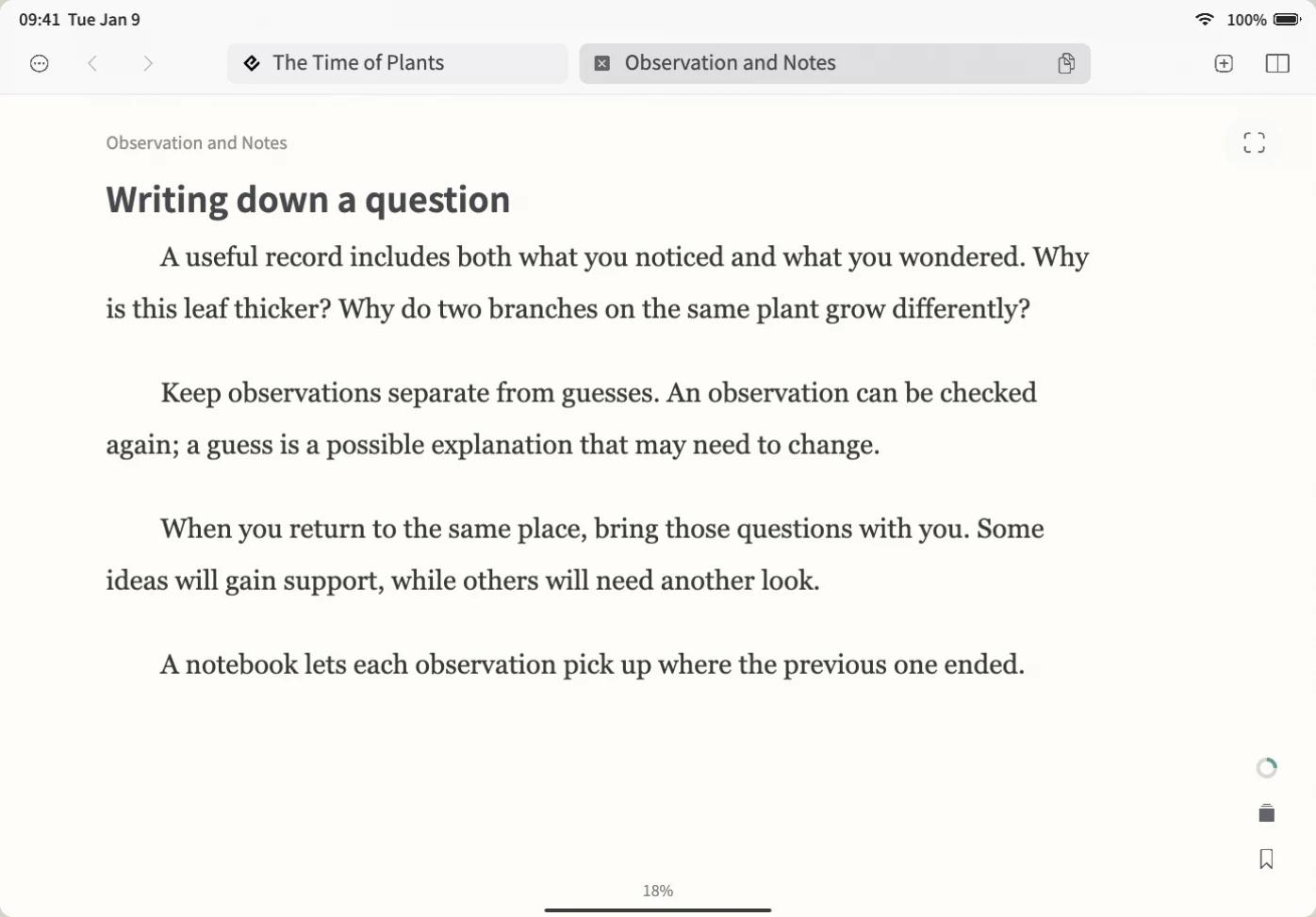
Text reflows when its size or available width changes. A different number of screen pages does not mean the reading location is lost. EPUB navigation and bookmarks refer to chapters and positions in the text.
4. Save a preset and apply it to another book
When the text is comfortable to read, choose "Save as Preset…," give it a recognizable name such as "Everyday reading," and save.
Open a second reflowable EPUB, return to the style panel, and choose your saved name from the preset menu. Read a few lines again. Books have different headings, images, and body structures, so further adjustment may help.
Apply the preset explicitly in the other book. Body-style presets do not include the reading theme, scrolling or paged layout, or the number of columns. Those remain separate settings.
Common questions
Why can I not change the body style in some EPUBs?
Check whether the book uses a fixed layout. Those EPUBs retain pages designed by the publisher and do not allow the same body-style overrides. Renaming the file extension does not make its content reflowable.
Does this change the original EPUB?
These controls change the reading display without rewriting the EPUB's original text. DoCube uses the saved reading settings when you reopen the same document.
How do I return to the book's original styling?
Turn off custom body styling to view the book's own styles. To change only one font back, use the original-book option in the font selector. That is different from disabling the full set of custom settings.
Will bookmarks still work after I change the font size?
EPUB bookmarks record a position within a chapter. Reflow changes the lines on screen, but a bookmark can still return you to the same content area. It is not a fixed PDF page number.
Does saving a preset change every book automatically?
No. Open the book you want to change, apply the preset in its style panel, and check the result. The preset does not include themes, page-turning layout, or columns.
Can I also read a translation beside the original?
Follow the separate EPUB translation guide. Translation requires a configured online service. Changing the reading layout described here does not require translation.
Try it with a book you are already reading: download DoCube from the App Store.