Generate Video Subtitles with Whisper on Mac — DoCube Offline Guide
Whisper is OpenAI's open-source speech recognition model. DoCube includes it so you can generate timestamped subtitles for courses, lectures and meeting recordings on your Mac, without installing Python or using a command line.
After the initial model download, recognition works offline and does not require uploading your video to a speech recognition service. This guide walks you through downloading the model, importing a video, generating subtitles and checking the result.
Before you start
If you have not installed DoCube yet, download it from the App Store. Then make sure you have:
- An Apple silicon Mac (M1 or newer) running macOS 14 or later.
- An internet connection for the initial model download: roughly 1 GB, depending on the model recommended in Settings. Recognition works offline afterward.
- A video that plays correctly and has an audible soundtrack.
Generate subtitles with Whisper in four steps
1. Download the Whisper subtitle model
In DoCube, press ⌘, to open Settings. Select AI Assistant, find Subtitles in the Local Model section, and click Download on the right of that row. DoCube recommends a model for your computer, so you do not need to choose one yourself. Wait for the download to finish before continuing.
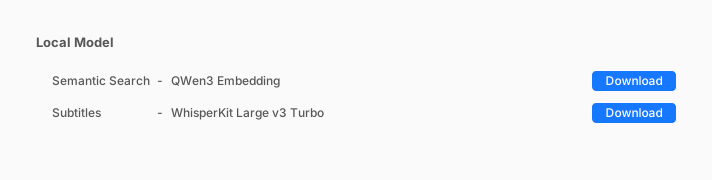
The illustrations are drawn from DoCube's interface. The video and subtitle content are examples.
2. Import your video
Click Import / New at the top left of the main window, choose Local file, and select the video to import. Common formats such as MP4 and MOV are supported.
If the video has a readable embedded subtitle track, DoCube uses it first. You can go straight to step 4 to check the subtitles.
3. Select Generate Subtitles
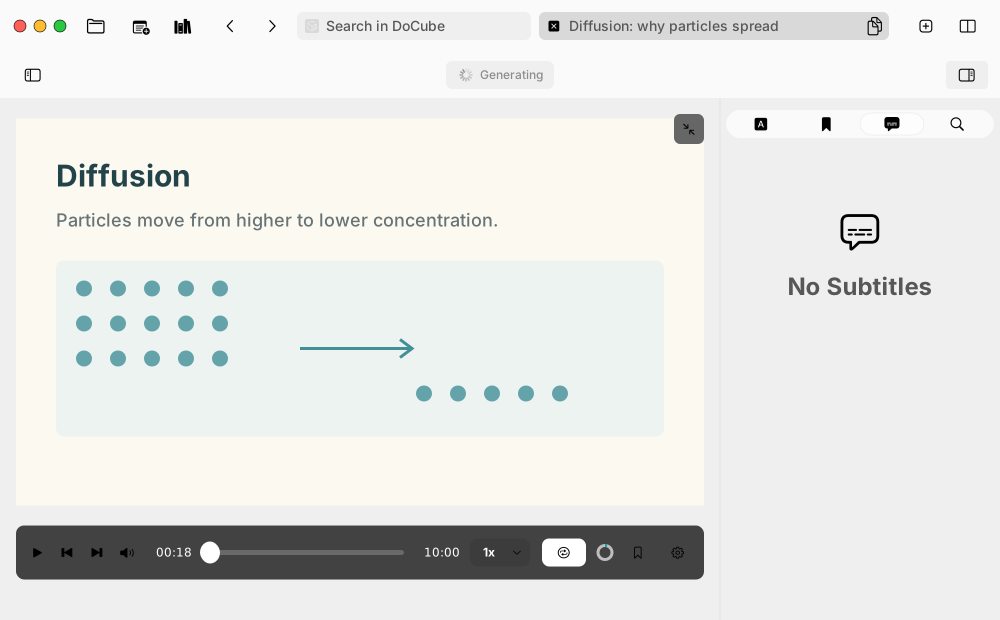
Open the imported video and select Generate Subtitles in the toolbar above it. Wait for processing to finish; longer videos take more time. If a task stops after some progress has been saved, reopen the video and select Continue Generating Subtitles to resume it.
For your first attempt, try a video around ten minutes long to check the results.
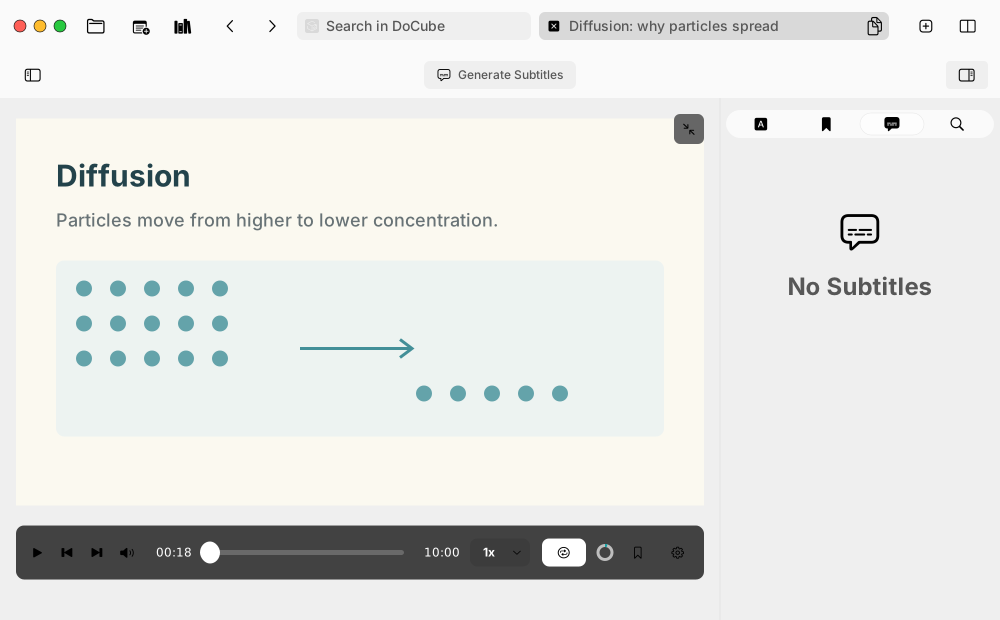
The button shows Generating while recognition is running. When DoCube notifies you that subtitle generation is complete, you can check the result.
4. Check the subtitles
If the panel on the right is closed, click the sidebar button at the far right of the toolbar above the video. Then select the subtitle speech-bubble icon at the top of the panel to open the subtitle list.
The list highlights the current sentence as the video plays. Select a sentence to jump to its time in the video.
Automatic subtitles can contain mistakes, particularly in names, technical terms and numbers. Right-click a sentence in the subtitle list and choose Edit to correct it. Subtitles with existing annotations cannot be edited, so check the text before annotating it.
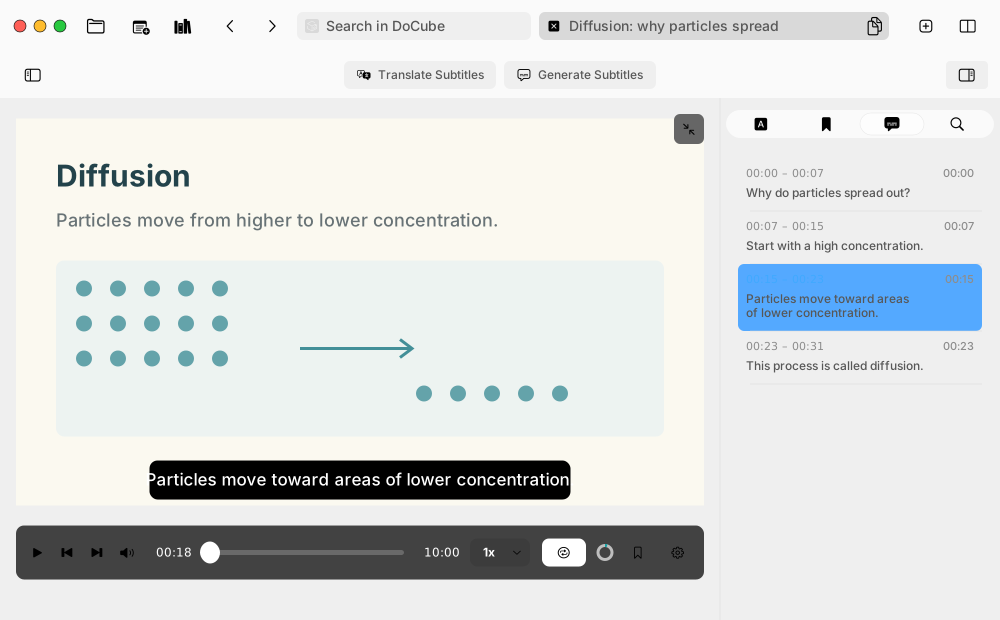
These subtitles play alongside the video in DoCube. They are not burned into the original video image.
What you can do next
- Watch with bilingual subtitles. If you need another language, configure an AI service and translate the subtitles. You can then switch between the original, translation and bilingual display. When you use an online service, the relevant subtitle text is sent to that provider.
- Listen to a sentence again. Use the current-subtitle loop to repeat a sentence, or A-B looping for a longer passage.
- Find something you heard. Search the subtitle text and return to the matching moment. See Search video transcripts offline on Mac.
- Keep a timestamp in your notes. See the guide to source-location links.
Frequently asked questions
Do I need to install Whisper separately to use DoCube?
No. DoCube includes Whisper speech recognition. Download the subtitle model as described in step 1; you do not need to install Python or set up a command-line environment. Generating original-language subtitles does not require configuring an online AI service either.
Does subtitle generation need an internet connection?
The initial model download needs internet access. Once the model is fully downloaded, recognition runs on your Mac and works offline. Downloading a model again or updating it still requires a connection.
Is my video uploaded?
Local subtitle generation does not upload your video. Features such as translation and AI chapters pass relevant subtitle text to your configured AI service. Check the provider's data-handling rules before using an online service.
Does it support Chinese videos?
Yes. DoCube detects the spoken language automatically. Check mixed-language speech and technical terminology after generation.
What if my MKV video will not open?
DoCube does not currently accept MKV, WebM or AVI. Convert the video to a compatible MP4 file with a video conversion tool before importing it. Renaming the file extension does not convert the video.
Do I get subtitles or a new video with subtitles burned in?
These four steps create original-language subtitles that you can display, check and use to jump between sentences in DoCube. They do not export an MP4 with subtitles burned into the picture.
If you also need a separate subtitle file, complete a subtitle translation first. You can then export translated or bilingual VTT files from the translation panel. A VTT file stores subtitle text and timing information for use with a compatible player.