How to generate chapters for a local course video
When a course recording has no chapters, finding a topic again can mean trying several points on the timeline. In DoCube, a local video with subtitles can use AI to generate chapter titles and timestamps. Read the outline to see what the lesson covers, choose a chapter to jump to it, then press play.
This guide uses a course video on iPad. On Mac, the same feature is available in the video's Contents panel.
Before you start
- Import the video into DoCube and check that it plays.
- The video needs subtitles with text and timing that match the recording. If it has none, follow the offline Whisper subtitle guide on Mac, then check the result.
- In Settings, open AI Assistant and configure an online service and model for video chapters. Generation sends subtitle text and timing information to your chosen provider, which may charge for the request.
The AI Auto Chapters entry appears only when the video has subtitles and its outline is empty. See the questions below if it already has chapters.
1. Open the video outline
On iPad, open the reading menu at the bottom right of the video player and choose the Contents icon. On Mac, open Contents from the video toolbar.
If the panel shows "No Outline," look for "AI Auto Chapters" below it. If it asks for AI configuration, set up the service and model in Settings, then return.
2. Generate chapters from the subtitles
Choose "AI Auto Chapters" and wait for generation to finish. The completed outline shows chapter titles and their start times.
DoCube organizes the timestamped subtitles into chapters. Missing passages or incorrectly recognized terms can affect the outline. This feature cannot fill in visual content that has no corresponding subtitle text.
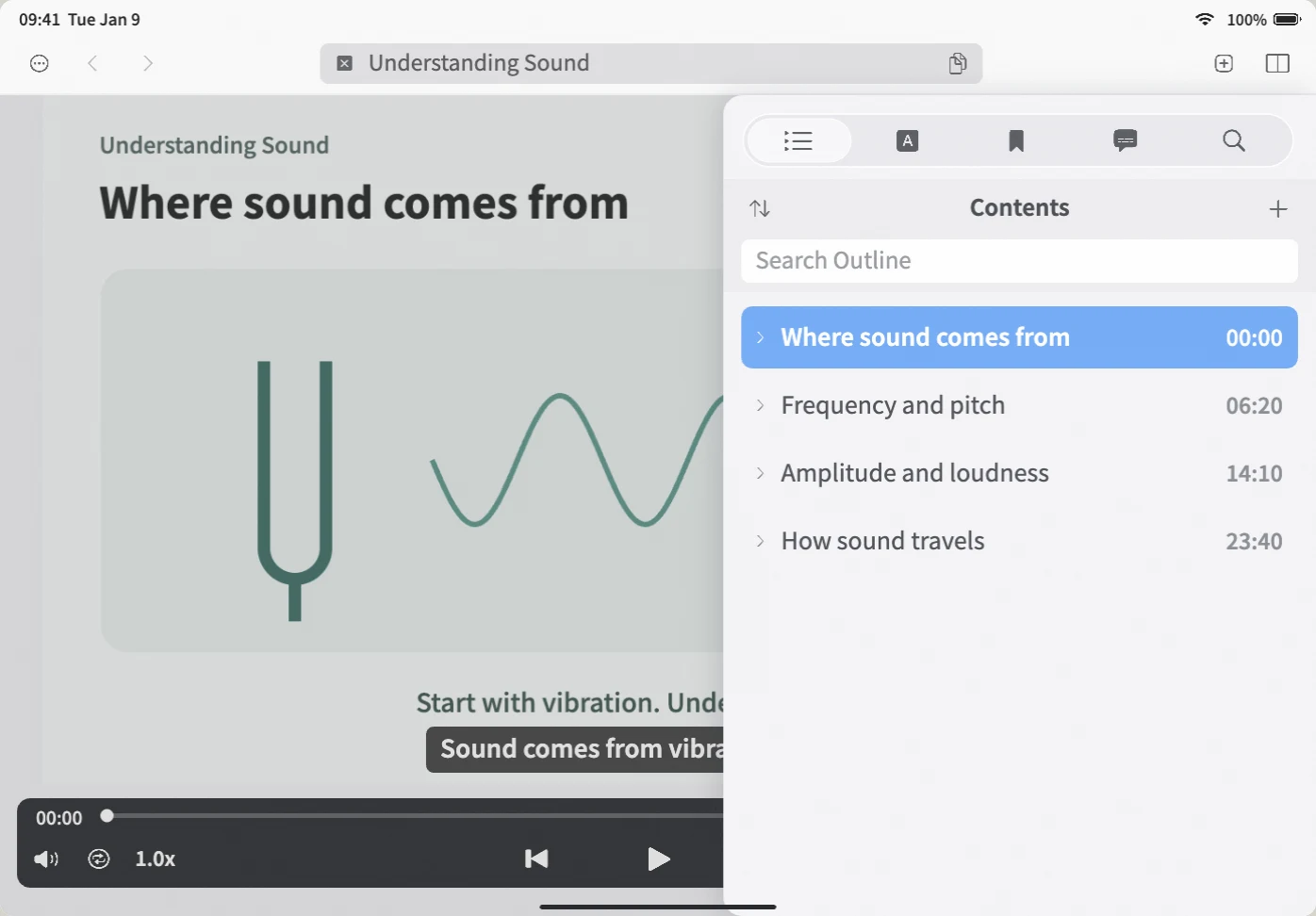
The time needed depends on the amount of subtitle text and the service you use. Waiting time has been shortened in the demo; it does not predict how long your request will take.
3. Check the titles and start times
Read through the outline, then check a few chapters. Does each title describe the passage? Does the timestamp land where that part of the explanation begins?
You can rename a chapter. To correct its time, move the player to the right point and update the chapter to the current playback position. You can also add a missing chapter manually without rebuilding the outline.
The example course has four chapters: Where sound comes from, Frequency and pitch, Amplitude and loudness, and How sound travels. These are teaching examples; the outline for your video will depend on its subtitles.
4. Jump to a chapter, then press play
Select a chapter to move to its start time. Seeking does not start playback; press play when you are ready.
For a longer outline, enter a word from a chapter title in the outline's search box to filter the list. During playback, the current chapter is highlighted so you can see where you are in the lesson.
If you remember a particular sentence, use video transcript search to find its timestamp. To keep an explanation beside your notes, follow the playable video clip guide and select its start and end points.
Frequently asked questions
Why is AI Auto Chapters missing?
Check that the video has subtitles and the outline is empty. The generation entry is hidden when chapters already exist. If there are no subtitles, prepare them first. If the button asks for AI configuration, choose a working service and model for the video-chapter task.
Can I generate again if the video already has chapters?
The automatic generation entry currently appears only for an empty outline. You can usually make corrections by editing chapter titles and times, or by adding and removing individual entries.
To replace the whole outline, you need to remove its existing chapters first. Keep any titles and timestamps you want to retain, and confirm that you no longer need the old outline before deleting it.
Does it recognize chapters from the video frames?
This feature uses subtitle text and timing, rather than analyzing the video frames. Add chapters yourself for demonstrations without spoken subtitles or for material missing from the transcript.
Does it work offline? Is the video uploaded?
AI chapter generation needs an internet connection to the configured service. The request contains relevant subtitle text and timing; it does not upload the video file. Local Whisper transcription and online chapter generation are separate tasks.
Do I have to generate again to fix a chapter?
No. You can rename chapters, adjust their start times, and add, remove, or rearrange entries. Check the important passages before relying on the outline for review.
Does this split the video into separate files?
No. It adds a timestamped outline in DoCube. Selecting an entry moves to that point in the original video; it does not cut the recording into multiple video files.
Start with one subtitled lesson, check a few generated chapters, and use the outline to revisit a topic. Download DoCube on the App Store.