Turn PDF textbook highlights into AI flashcards in DoCube
Highlighting an important concept in a PDF textbook is quick. Turning it into a question and answer for later review takes more work. DoCube's new automatic flashcards from annotations feature handles that step: once enabled, it uses new ordinary annotations and their context to create question-and-answer flip cards and add them to review.
Google's October 29 Gemini Notebook textbook update mentions turning textbook content into flashcards and practice quizzes. If that has you thinking about making review material from your own reading, this guide covers the DoCube workflow: highlight what you need to remember, let AI draft the questions and answers, then check them yourself.
The example uses a PDF textbook. Automatic card creation also supports ordinary annotations in EPUB, saved webpages, MinerU documents, and videos. Markdown and mixed notes are not supported.
1. Enable automatic cards from annotations
Open Settings → AI Assistant and configure an available online AI service. Under Model Configuration, find Auto annotation cards and choose its provider and model.
This task is disabled by default. Generate flashcards is a separate setting for manually requesting AI cards from selected text. Configuring that task alone does not enable automatic cards from annotations.
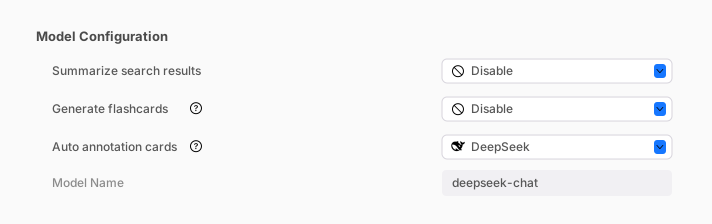
Card generation needs a network connection. The selected text, comments, necessary context, and existing card content used to check for covered knowledge are sent to your chosen AI service. Provider usage charges may apply.
2. Highlight a passage as you read
Open the textbook, select a concept or a short conclusion you want to remember, and add an ordinary highlight. You can use any color. You do not need to open the AI Cards menu each time.
For example, a passage might explain that negative feedback reduces a deviation and helps a system return toward a stable state. A generated card could ask, “How does negative feedback help a system stay stable?” You can try answering before flipping the card to check the explanation.
Start with a short passage. If you highlight the whole page, it can be harder to decide what you actually need to recall.
3. Check the cards in the annotation list
Keep DoCube running on the device where you created the annotation. Open the document's annotation list and check the status beneath the annotation. Once cards are linked, open the Memory Cards menu and select a question to preview the front and back.
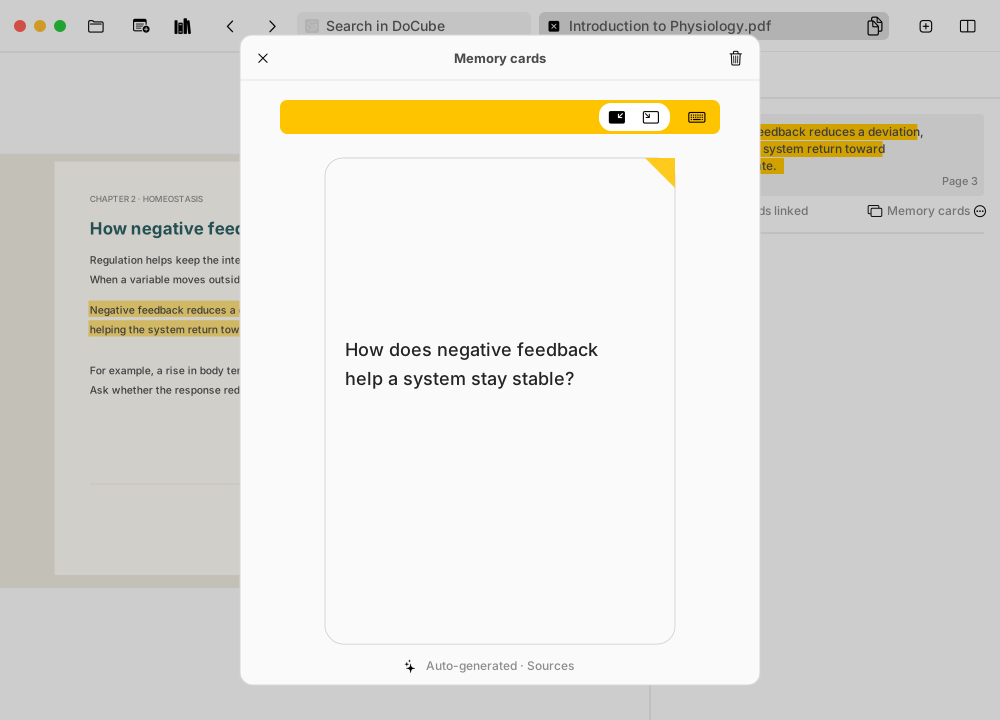
Check that the question is clear and the answer matches the textbook. Pay particular attention to formulas, numbers, and conditions. The card includes a source link for checking the original passage. You can delete an unsuitable card.
Annotations in the same paragraph are processed together. When you add another annotation in that paragraph later, DoCube checks existing cards before adding cards for uncovered knowledge. The number of highlights will not necessarily match the number of new cards.
4. Answer before flipping during review
Use the review area on the home screen when cards become due. Try answering the question, flip the card to check, then choose Hard, Medium, or Easy according to how well you remembered it. A new card may not appear in today's queue immediately; follow the review schedule.
If you prefer hiding the original words and recalling them in context, use the separate highlight review rules based on annotation type and color. Those rules keep your selected source text and do not need AI to write a question. Automatic cards from annotations generate new questions and answers.
Frequently asked questions
Will enabling it process my old highlights?
No. It processes new ordinary annotations made after you enable the feature. It does not generate cards for all your previous highlights. Configure the task first, then create a new highlight to try it.
Why did a highlight produce no new card?
Check that automatic card creation from annotations is enabled, the AI service works, and DoCube is still running on the device that created the annotation. The annotation list shows the task's status.
A passage may have no suitable knowledge point to turn into a card. If an existing card for the same paragraph already covers the material, DoCube may link that card instead of creating another. A highlight does not always produce a new card.
How is this different from choosing AI Cards on selected text?
Manual AI card creation lets you choose a card type and request generation, which is useful when you want to control the kind of question. Automatic card creation is triggered by new ordinary annotations. It uses context to extract knowledge and makes question-and-answer flip cards, without using the manual task's card-type prompts. The two tasks have separate provider and model settings.
Can I use a scanned PDF?
Run OCR first and check that you can select the correct text. Misrecognized terms, formulas, or numbers can affect the questions too. For finding passages across a larger library, see the PDF search guide.
Does card generation work offline?
The configuration described here uses an online AI service and needs a network connection. Provider usage charges may apply. It is separate from local Whisper transcription and Embedding search.
Can my Mac generate cards for annotations I make on iPad?
Cards are generated on the device where the annotation was created. For example, an annotation made on iPad is processed on that iPad, with DoCube running during generation.
Will disabling the task delete existing cards?
No. Choosing Disabled for the annotation card task in Model Configuration pauses generation and keeps existing cards.
Try one concept from your textbook, check the result, and use it in your regular reading if it helps. Download DoCube on the App Store.